The canvas
Nodes and cables
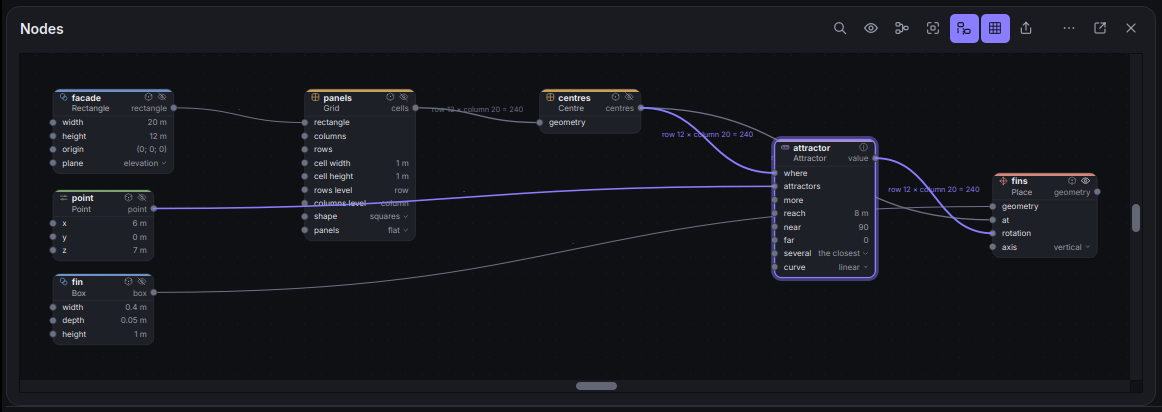
Section titled “Nodes and cables”- Add a node: double-click on an empty spot, or Tab. Type its name or what you want to make.
- Repeat the last node: Shift + R places the last kind of node you used again, where the mouse is.
- Connect: drag from the small circle on the right of a card to an input of another card.
- Choose: click a card; drag a rectangle, or Ctrl + click, to choose several. With several chosen, the Node panel changes them all at once.
Right-click on a card
Section titled “Right-click on a card”| Option | What it does |
|---|---|
| Rename… | gives the node a name of its own: facade, fins |
| Show in 3D / Show only this one | its eye, or only its eye |
| Find its best value… | opens Find the best for that number. See Find the best |
| Enter group / Leave group | go into a group card, or back up |
| Save to library… | keeps a group to use it in any project |
Arranging
Section titled “Arranging”- Ctrl + L arranges all the nodes in order, from left to right.
- View → Organize nodes aligns and distributes the chosen cards.
- View → Snap to grid and Smart guides help to place cards by hand.
Annotations
Section titled “Annotations”Right-click on an empty spot of the canvas, Annotate here: a text, an arrow or a frame. They do not change the calculation: they explain the project to whoever opens it. A frame is not a group.
Shortcuts
Section titled “Shortcuts”| Keys | What they do |
|---|---|
| Tab | add a node |
| Shift + R | repeat the last node |
| Ctrl + F | find a node by name |
| Ctrl + C, Ctrl + X, Ctrl + V, Ctrl + D | copy, cut, paste, duplicate |
| Ctrl + A | choose all |
| Ctrl + G, Ctrl + Shift + G | group, ungroup |
| Ctrl + Z, Ctrl + Shift + Z | undo, redo |
| Shift + F | frame the nodes |
| Ctrl + L | arrange the nodes |
| Ctrl + , | preferences |
Tip. In a field of a card, the keys write: Tab goes to the next value and Delete erases letters. Copy and paste work on the canvas when the focus is on it.