
Find the best
What for
Section titled “What for”To find the values that make a design best by some number: the least material, the most sun in winter on a façade, an area as close as possible to 500 m², the lightest structure that passes the Bar analysis.
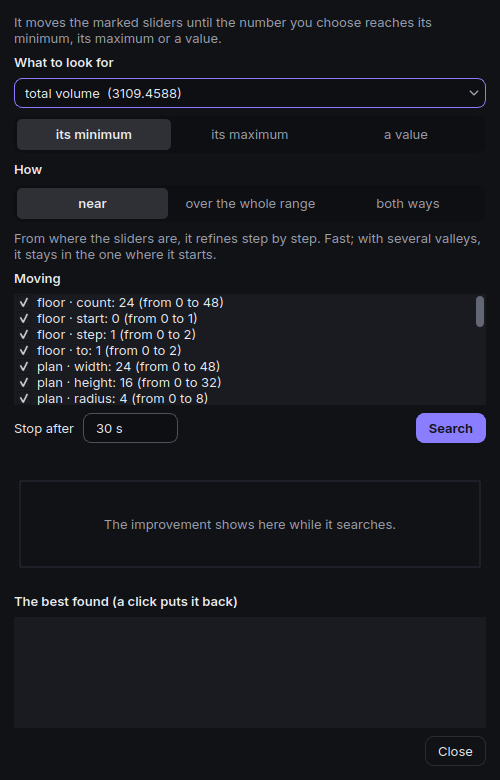
- Open Edit → Find the best…, or right-click the node that gives the number, Find its best value…. It opens beside the window, so you keep seeing the model.
- Above, what is searched for: a node that gives a single number (a Length, an Area, a Formula, the total weight of a Bar analysis…) and whether you want its minimum, its maximum or a value to reach.
- Below, which sliders it moves: those that change that number, all marked to start with. Unmark those it should leave alone. If some number has no slider yet, Show the marked ones as sliders adds them to Values.
- Search. Each time it finds something better, the sliders and the 3D view show it. Stop keeps the best so far.
At the end, the best values stay in the sliders, and Ctrl + Z goes back to how they were. The list keeps the best ones found: a click puts any of them back.
Near, or over the whole range
Section titled “Near, or over the whole range”- Near refines from where the sliders are: quick, and it finds the best close to the start.
- Over the whole range explores everything with a population of candidates, generation after generation: slower, and better when there are several good answers far apart.
Tip. The search works on a copy of the project, so the window keeps responding while it runs. How it searches is told in Form finding and the best value.